반응형
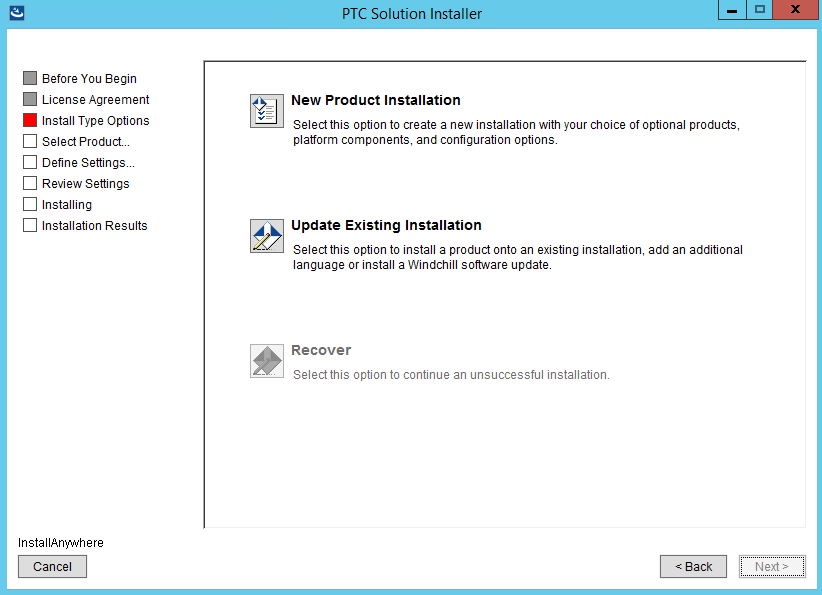
Windchill PartsLink는 PTC의 Windchill PLM 시스템의 옵션 모듈로, 기존 Windchill 환경에 설치·설정되어 부품 분류 및 재사용 기능을 제공합니다. 구축 과정은 주로 설치(Installation), 포스트 설치(Post-Installation), 구성(Configuration)으로 나뉘며, PTC Solution Installer(PSI - 설치 프로그램) 를 사용 하여 설치 됩니다.
주의:
- Windchill PDMLink가 이미 설치된 환경을 전제로 합니다. PartsLink는 독립 설치가 아닌 Windchill의 확장입니다.
- 서버 요구사항:
Windows/Linux 서버, Java 11+, Oracle/PostgreSQL DB, 최소 8GB RAM (Sizing Calculator 사용 추천). - 라이선스: PTC 고객 포털에서 다운로드. 클라이언트는 Windchill과 함께 설치 가능.
설치 및 설치 검증을 아래와 같은 순서로 구성 합니다.
1단계 : 준비 단계 (Prerequisites, 1-2일 소요)
1. 라이선스 및 소프트웨어 다운로드:
- PTC 고객 포털(support.ptc.com)에 로그인 후, "Software Downloads"에서 Windchill 버전에 맞는 PartsLink 패키지 다운로드 (예: Windchill_PartsLink_13.0.zip).
- PTC Solution Installer(PSI) 도구 확인 (Windchill 설치 시 포함됨).
2. 환경 확인:
- Windchill PDMLink 11.0 이상 설치 확인 (PartsLink 10.0~13.0 지원).
- 데이터베이스 스키마 생성 (Windchill DB와 연동).
- 웹 서버(Apache/Tomcat) 및 Method Server 설정 (IIS 구성 시 PartsLink 런타임 설정 포함).
3. 테스트 환경 구축:
프로덕션 전에 샌드박스 서버에서 테스트. PTC의 무료 트라이얼 환경 사용 가능.
2 단계 : 설치 (Installation, 2-4시간 소요)
PartsLink는 Server와 Client로 나뉘며, PSI를 사용해 설치합니다. Server는 별도 실행 필요
| 단계 | 세부 작업 | 명령어/팁 |
| 1. PSI 실행 | Windchill 설치 디렉토리에서 PSI 런처 실행 (예: psi.bat). |
"Optional Product Settings" > "Windchill PartsLink Classification and Reuse" 선택. |
| 2. Server 설치 | PartsLink Server 패키지 선택 후 설치. DB 연결 설정 (Oracle 사용자명 입력). | 설치 후 서버 시작: windchill start 명령어. 에러 시 로그 확인 (methodserver.log). |
| 3. Client 설치 | Windchill 클라이언트와 함께 설치 (별도 불필요). | 브라우저(Chrome)에서 Windchill 로그인 후 PartsLink 모듈 접근 테스트. |
| 4. 통합 확인 | Windchill PDMLink와 연동 (부품 객체 클래스화 가능 여부 확인). |
실패 시: "Fail to start PartsLink server" 에러 해결 (CS61597 문서 참조). |
문제 해결: 설치 중 DB 에러 발생 시, Oracle 사용자명 재확인.
3단계 : 포스트 설치 및 초기 설정 (Post-Installation, 1-2일 소요)
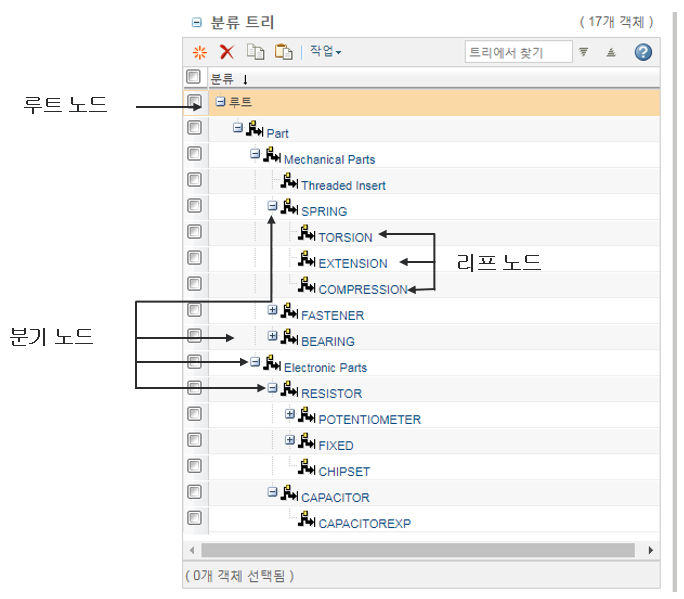
설치 후 데모 분류 구조를 로드하고 기본 설정을 합니다. 데모는 자동 로드되지 않음. 사용자마다 Windchill 설치 위치가 다르기 때문 입니다.
1. 데모 분류 로드:
- <Windchill>\loadFiles\partslink\demoClf\ 디렉토리로 이동.
- DemoClassification_QOM.xml 파일 편집:
<csvcontentRoot> 경로 업데트 (예: J:/Windchill/loadFiles/partslink/demoClf/attachments/). - 명령어 실행 (Windchill 명령 프롬프트에서)
windchill wt.load.LoadFromFile -d <Windchill>\loadFiles\partslink\demoClf\DemoClassification_QOM.xml -u <username> -p <password>
windchill wt.load.LoadFromFile -d <Windchill>\loadFiles\partslink\demoClf\DemoClassification_attributes.xml -u <username> -p <password>- 이로써 기본 트리 구조(예: 자동차 > 엔진 > 부품) 생성. 이를 기반으로 커스텀 분류 수정
PTC Windchill Help Center
support.ptc.com
2. 인덱스 검색 구성: Windchill 검색 엔진 활성화 (IIS 또는 Solr 설정)
3. 테스트:
- 부품 5개 분류 및 검색 테스트
- CAD 연동(Creo): 부품 재사용 워크플로 확인.
PTC Windchill Help Center
support.ptc.com
반응형
'Creo Reference Room > Windchill' 카테고리의 다른 글
| Windchill PartsLink? #2 (0) | 2025.10.26 |
|---|---|
| Windchill PartsLink? #1 (0) | 2025.10.26 |
| 엔지니어링 BOM(eBOM, Engineering Bill of Materials) (0) | 2025.10.02 |
| Windchill] 기본 구성 #3 - 객체 타입(Type) 및 속성(Attribute) 정의 (0) | 2025.10.02 |
| Windchill] 기본 구성 #2 (0) | 2025.10.02 |


