▣ Using IpfcComponentFeat.RedefineThroughUI() Method
IpfcComponentFeat.RedefineThroughUI()는 Creo Parametric의 VB API를 통해 어셈블리 내의 컴포넌트 피처(예: 부품 또는 서브어셈블리)를 UI(사용자 인터페이스)를 통해 재정의하는 메서드입니다. 이 메서드는 Creo의 대화형 인터페이스를 호출하여 사용자가 컴포넌트의 배치(placement)나 제약 조건을 수정할 수 있도록 합니다.
IpfcComponentFeat.RedefineThroughUI() is a method that redefines a component feature (such as a part or subassembly) within an assembly through the user interface (UI) using Creo Parametric's VB API. This method calls Creo's interactive interface to allow the user to modify the placement or constraints of the component.
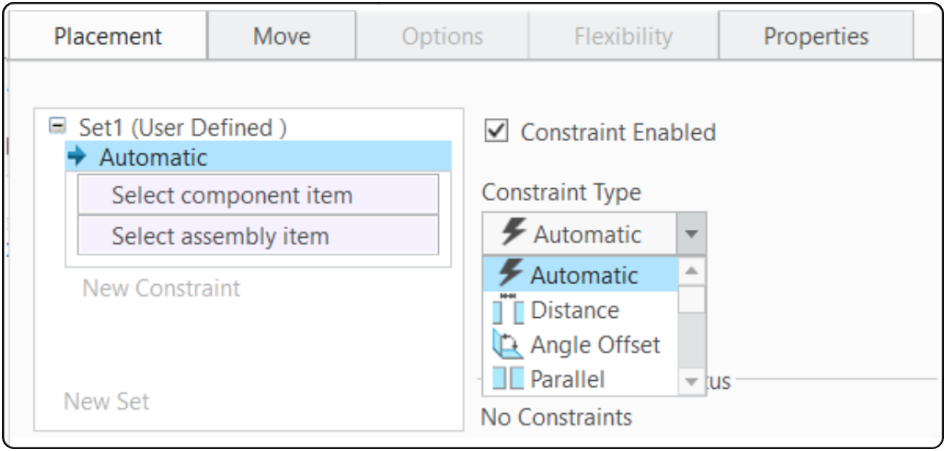
- IpfcComponentFeat.RedefineThroughUI() 메서드는 대화형 VB API 애플리케이션에서 사용되어야 합니다.
- 이 메서드는 Creo Parametric의 제약 조건(Constraint) 대화 상자를 표시합니다.
- 이를 통해 최종 사용자는 대화형으로 제약 조건을 재정의할 수 있습니다.
- 사용자가 확인(OK) 또는 **취소(Cancel)**를 선택하고 대화 상자를 닫으면, 제어권이 VBA 애플리케이션으로 다시 돌아옵니다.
- The IpfcComponentFeat.RedefineThroughUI() method should be used in interactive VB API applications.
- This method displays the Creo Parametric Constraint dialog box.
- This allows the end user to redefine constraints interactively.
- When the user selects OK or **Cancel** and closes the dialog box, control returns to the VBA application.
▷ Example Code
Option Explicit
Public selectValue As String
Sub CreoAssy01()

     On Error GoTo RunError
     Application.EnableEvents = False

     Call GetSelectedCellValueWithValidation

     '// Creo Connection
    Call CreoVBAStart02.CreoConnt02

    Dim model As IpfcModel
    Dim Solid As IpfcSolid
    Dim CreatepartModelDescriptor As New CCpfcModelDescriptor
    Dim partModelDescriptor As IpfcModelDescriptor
    Dim partToAssembleModel As IpfcSolid
    Dim currentAssembly As IpfcAssembly
    Dim ComponentFeat As IpfcComponentFeat
    Dim componentPaths As IpfcComponentPaths
    Dim CreateComponentConstraint As New CCpfcComponentConstraint
    Dim ComponentConstraint As IpfcComponentConstraint


    '// Get current model
    Set model = BaseSession.CurrentModel
    If model Is Nothing Then
        MsgBox "There are currently no open models..", vbCritical, "Error"
        GoTo CleanUp
    End If

    '// Ensure the current model is an assembly
    If model.Type <> EpfcMDL_ASSEMBLY Then
        MsgBox "Current model is not an assembly. Please open or create an assembly.", vbCritical, "Error"
        GoTo CleanUp
    End If

    Set Solid = model
    Set currentAssembly = Solid '// Cast Solid to Assembly if it is an assembly

    '// Retrieve the part to be assembled
    Set partModelDescriptor = CreatepartModelDescriptor.CreateFromFileName(selectValue)
    Set partToAssembleModel = BaseSession.RetrieveModel(partModelDescriptor)

    If partToAssembleModel Is Nothing Then

        MsgBox "Could not find or load part '" & selectValue & "'. Make sure it is in the working directory or search path.", vbCritical, "Error"
        GoTo CleanUp

    End If

    Set ComponentFeat = currentAssembly.AssembleComponent(partToAssembleModel, Nothing)


    If Not ComponentFeat Is Nothing Then
        '// Redefine the newly assembled component through the UI
        ComponentFeat.RedefineThroughUI
      Else
        MsgBox "Failed to assemble component '" & selectValue & "'.", vbCritical, "Error"
        GoTo CleanUp
    End If


    MsgBox selectValue & "  Assembled.", vbCritical, "success"


     conn.Disconnect (2)

CleanUp:
    Set asynconn = Nothing
    Set conn = Nothing
    Set BaseSession = Nothing
    Set model = Nothing
    Application.EnableEvents = True

RunError:
            If Err.Number <> 0 Then
                MsgBox "Process Failed: An error occurred." & vbCrLf & _
                       "Error No: " & CStr(Err.Number) & vbCrLf & _
                       "Error Description: " & Err.Description & vbCrLf & _
                       "Error Source: " & Err.Source, vbCritical, "Error"
                If Not conn Is Nothing Then
                    If conn.IsRunning Then
                        conn.Disconnect (2)
                    End If
                End If
            End If

End Sub

Sub GetSelectedCellValueWithValidation()

RetrySelect:
    '// Check if the value of the selected cell is empty
    If Trim(ActiveCell.Value) = "" Then
        MsgBox "The selected cell does not have a value. Select a cell with a value and try again..", vbExclamation, "Error"
        Exit Sub
    Else
        selectValue = ActiveCell.Value
    End If

End Sub
▷ youtube
액셀의 유효성 검사 기능을 사용하면, 설계 조건에 따라 Option 부품을 자동 선택되어 조립할 수 있습니다. Using Excel's validation function, optional parts can be automatically selected and assembled based on design conditions.
▷ youtube : validation function
by korealionkk@gmail.com

'업무 자동화 > VBA, VB.NET For Creo' 카테고리의 다른 글
| Excel VBA Study] 재생성 실패한 컴포넌트 이름 검색 (1) | 2025.07.12 |
|---|---|
| Excel VBA Study] Analyze the surface type of the part model (2) | 2025.07.10 |
| Excel VBA Study] Assembling the Part File #1 (0) | 2025.07.08 |
| Excel VBA Study] Create a file name in Creo #2 (0) | 2025.07.03 |
| Excel VBA Study] Create a file name in Creo #1 (0) | 2025.07.03 |


